
Designing Games
Design edits the canonical game definition used by execution. Changes remain local to the open editor until Save changes stores a new revision.
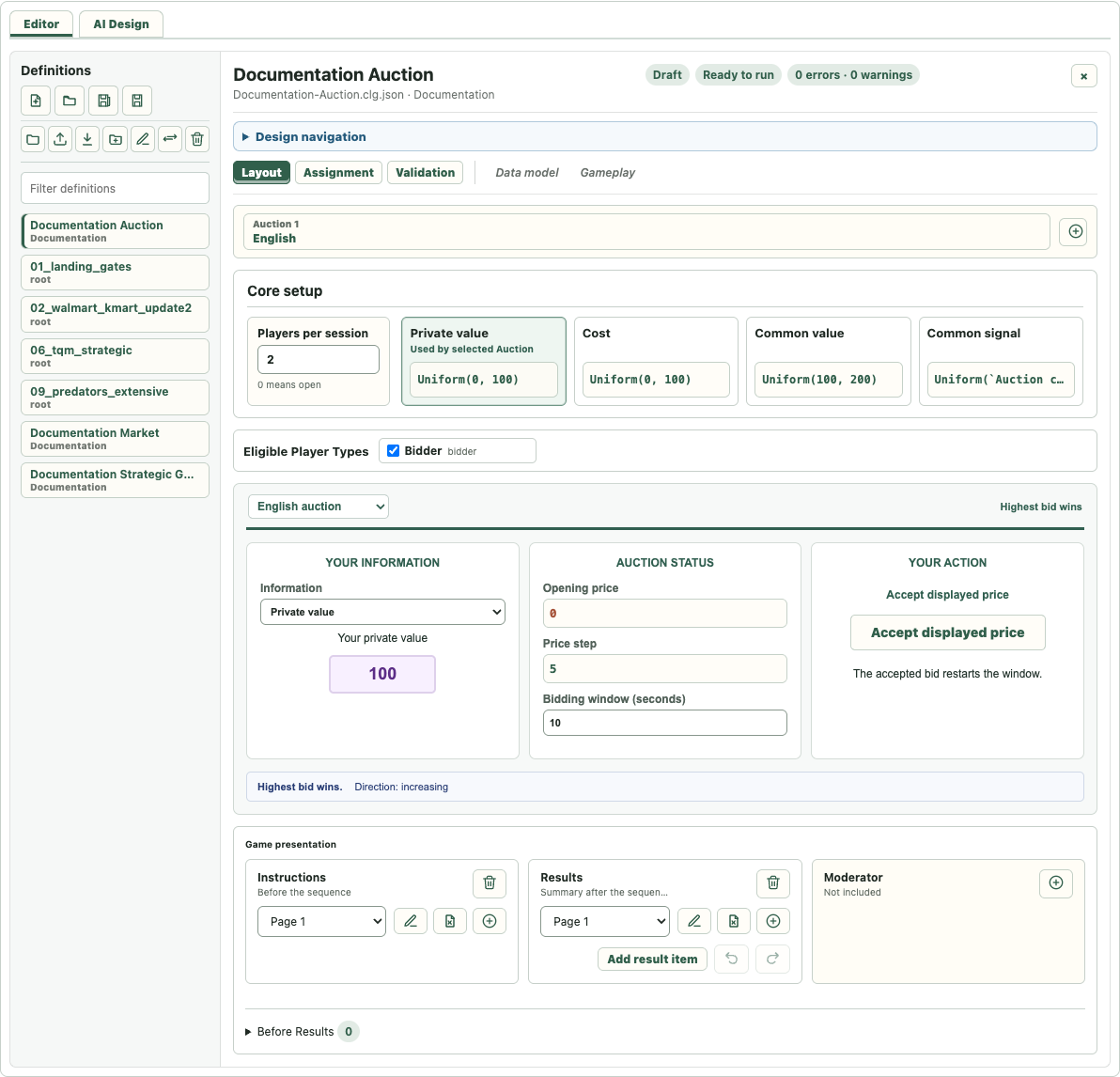
Definitions
The Definitions list is both a game selector and the main catalog-management surface. Selecting a game moves it to the top of the recent list and opens its Design. Use Filter definitions to narrow the list.
The first toolbar row contains document commands:
- New Game creates a definition in a selected catalog folder.
- Open Game opens an account-owned definition.
- Save As copies the current definition to a chosen name and folder.
- Save changes stores the current revision.
The second row contains catalog commands:
- manage catalog folders,
- upload
.clg.json,.mgd, or.xmldefinitions to an explicitly chosen folder, - add the selected game to one or more room destinations,
- rename, move, or delete the selected game. Rename updates the display name and download filename; exported JSON uses the new title.
Folder controls are also available in the New, Open, Save As, Upload, and Move dialogs. Root cannot be renamed or removed. A folder must be empty before deletion. Demo and its descendants are read-only and do not appear as Design destinations.
Design Navigation
Design has two top-level views: Editor (the default) and AI Design. Both are available before you select a game. The Definitions list remains available in either view. Editor contains the game-specific Layout, Assignment, Validation, Data model, and Gameplay tabs; AI Design uses the same space for its conversation. Switching views keeps the selected game and any unfinished AI request. The Slovenian interface labels the AI tab Načrtovanje z AI; changing the interface language also updates the already-open AI panel controls. Existing conversation text stays in its original language. Choosing an AI conversation for an existing game opens that game in Definitions. Choosing a New game conversation closes the open definition; if it has unsaved changes, choose Save, Discard, or Cancel first. A new-game request may refer to the last selected game as a copy source, or name a game explicitly. It does not copy the previous game unless requested. Closing a definition in Editor leaves AI Design with an empty conversation and no conversation selected in Recent conversations. Earlier conversations remain available in that list; the next message starts a new-game conversation. The original AI conversation for a created game appears as Creation: [game name]; later conversations appear as Change: [game name]. Only this game limits Recent conversations to the game linked to the current conversation. Names follow later game renames, while the filter uses the stable game identity.
See AI Design for how requests become reviewable proposals, how corrections work, and what the assistant currently supports.
Every open game definition has a compact navigation panel above the Design tabs. Its five destinations open the game overview, Assignment, Layout or Gameplay, and Validation, or start/open a test player. The destinations form one row and use their help text as tooltips. The test action stays unavailable while the definition has blocking errors or unsaved changes.
The panel is closed by default. Opening or closing it does not change the definition; the browser remembers that choice for each game while you move between Design tabs or change the interface language.
Open test player starts an ordinary account-owned run from the last saved definition when one is not already open, then opens the next participant in a separate browser tab. The definition does not have to be added to a room first. While that run is open, the last navigation item offers both Open test player and Stop test game. Reaching a terminal Stage finishes a participant session; stopping the test game completes current play, shows configured Results, and closes the run to new players.
Shared Tabs
Available tabs depend on the game type:
- Layout is the main visual editor for the game mechanism.
- Assignment defines Player Types, participant allocation, rounds, randomization, and execution policies.
- Data model manages Variables, Choices, Functions, Finite Sets, Images, and value sources.
- Gameplay exposes detailed modules, Stages, transitions, and outputs where needed.
- Validation lists errors and warnings. Open navigates to the relevant editor location when possible.
Stages And Game Presentation
Presentation commonly uses Instructions, Results, and Moderator Stages. Their cards are arranged in three columns. A Stage may contain one or more Pages; a missing Stage is shown as Not included.
The Page controls are grouped below the Stage name. Use them to choose a Page, edit it, duplicate it, add another Page, or remove content. In Free Form games, process Stages use the same Page model.
Page Editor And Audience
The Page editor supports formatted text, Variables, Choices, Images, and tables. Selected text can be converted to a new Variable or Choice. The Convert control is available only while text is selected.
Audience appears directly below the toolbar. Each Assignment target can occur at most once and may be:
- Active: the Page contains the participant's primary interaction.
- Observe: the Page is visible as an observing view.
- Glance: the Page is a lower-priority view.
- no Audience rule: the Page is Passive for that target and is not shown.
A participant may receive at most one visible Page in a Stage. Active, Observe, then Glance define access priority, while an omitted audience is Passive. A Stage may still contain several Pages for disjoint audiences. Validation blocks publishing if any possible participant matches more than one visible Page.
New lifecycle presentation Stages initially assign all existing Player Types as Active. Remove or change rules when a Page should target a narrower Audience.
Variables And Value Sources
A Variable may have one or more value sources, such as game initialization, Stage completion, transition, periodic update, or transaction output. The Variable inspector shows saved and pending Page changes. Add, edit, move, or remove sources there; Page-staged changes become canonical when Apply Page is used.
Use Find usages before changing or removing a shared definition. Deleting a value source removes the calculation, not every reference to the Variable.
See Data Model Settings Reference for every New Variable purpose, Calculated at destination, type, scope, and source action.
Before Results
For Auctions, Free Form, Matrix and Tree games, Game presentation > Before Results contains the final output table. Add an existing Variable or create one with the plus beside Variable, edit its formula, reorder outputs, and enable Immediate when a subsequent output needs the new value. The same destination is available in a Variable's calculation settings and to AI Design. Final calculations remain separate from the last Free Form Stage, so adding another Stage does not require moving them.
The batch runs on normal completion or moderator Stop. Reading or reopening Results does not repeat it. Moderator view stays live and does not trigger final calculations; values calculated only Before Results become available there after completion. Market keeps its existing Before Results controls and account functions.
Add result item
In Game presentation > Results, select a Page and click Add result item below its Page controls. The plus icon still adds a new Page; Add result item adds a labelled value to the selected Page. Enter the item name and choose an existing Variable or a new Formula, then review the change with Preview.
An existing Variable is displayed without changing when or how it is calculated. A new formula creates a Variable and an ordinary Before Results output. For Auctions, Free Form, Matrix and Tree games, the shared batch runs once after the last module in each round, after settlement and before Results. In a two-auction comparison it runs after the second auction. For Market games it uses the existing account-aware Before Results batch after trading ends; select the Market explicitly when there is more than one. The Page reads the stored value. Page-time calculation remains available through the general Variable settings, but this command does not use it for new formulas.
New calculations are appended in order with immediate assignment, so a later result can use an earlier result from the same Before Results batch. Existing outputs and their settings remain unchanged. The Variable and Page content remain editable after insertion.
Adding an item is an unsaved Design change. Save it using the ordinary Save command; leaving the game offers Save, Discard or Cancel. The adjacent undo and redo controls restore the local transaction and preserve any preceding unsaved changes. They do not write to the server or overwrite later unrelated edits.
Images
Data model > Images is the central image library for the current game. It supports upload, preview, rename, replacement, usage inspection, and guarded removal. PNG, JPEG, GIF, and WebP files up to 5 MiB are supported.
Images are game-scoped: every Page in the same game can reuse them, but another game cannot see them automatically. The Page toolbar can select an existing Image or upload and immediately insert a new one. Uploading requires the current Design to be saved because the image bytes are stored in its canonical package.
In Market Game, Asset means a tradable game object. Presentation media is always called Image.
Formula Editor
Formula fields open a shared editor. Type directly or insert a Definition or Function; the pickers support filtering and grouped functions. Validation feedback is shown before Apply.
References use stable internal identity even when author-facing names change. Names containing spaces are rendered readably in Pages and represented safely in formulas.
See Formula Editor Reference for types, function groups, references, validation, and common formula patterns.
Saving And Execution
Leaving a modified definition offers Save, Discard, or Cancel. Discard restores the last saved revision, including its image library and Page content.
Execution requires a valid saved definition. Errors block starting the game; warnings may require confirmation. Starting a revised definition never changes a run already in progress.
Game-Specific Chapters
- Auction Design
- AI Design
- Market Game Design
- Strategic Form Design
- Extensive Form Design
- Free Form Design
- Data Model Settings Reference
- Market Design Commands Reference
- Assignment Settings Reference
- Page And Audience Reference
- Formula Editor Reference
Market: holdings and total valuation
Click Market valuation in Layout to edit the value of the selected Asset's entire holding. Its default is private per-unit valuation × current endowment. Click Total valuation to edit total wealth; its default is cash + holdings values for all Assets. Both formulas can refer to an existing Variable. Clearing a formula restores its default; initial cash, endowment and private per-unit valuation remain separate settings.
Use holdings_valuation(asset), total_valuation() or init_total_valuation() to reuse these values in other calculations. New Final portfolio summary outputs use the shared total calculations in Before Results for participant and Moderator results. Existing custom result formulas are preserved. A Variable referenced by a live display must already have a value at that point in the game; a Before Results-only calculation is not available during trading.
Market: After player initialization
Use After player initialization for a per-player Variable that needs the player's initialized Market account. Select it under Calculated at, or edit the output table in the Player Type account in Gameplay. For example, calculate Initial wealth using init_total_valuation() here. Cash, assigned assets and valuations already exist at this point. The calculation runs once for each player, including late entrants to an open game, and does not repeat on reconnect. Use transaction or periodic outputs for subsequent live updates, and Before Results for final-only calculations. With several dependent outputs, enable Immediate calculation on values needed by following rows.
Final portfolio summary preserves existing Variables and their calculations. If its preferred Variable name is already occupied by a different calculation, the generated Variable receives · Final portfolio (and a number when necessary). Table headings remain unchanged. An incompatible existing generated projection is reported explicitly with its Variable name; it is not silently overwritten.
AI proposal history
Each new AI proposal is available beside its reply as an expandable review. Its label distinguishes a proposal awaiting approval, one replaced by a later proposal, and one already applied. An unaccepted proposal is not automatically rejected. Historical reviews cannot be applied again.
Follow-up corrections normally modify the pending candidate; the current preview lists the original changes and later corrections together. Apply accepts the whole candidate. You can also ask AI to prepare the changes again from the saved game; that replaces the pending plan while leaving the saved game untouched until Apply. Earlier conversations may lack the full history of replaced proposals.