
Logs and Run Analysis
Run Logs preserves what the server recorded after a game is started. Use it to inspect a run, compare its sessions, export deterministic data, or prepare structured input for an external AI assistant.
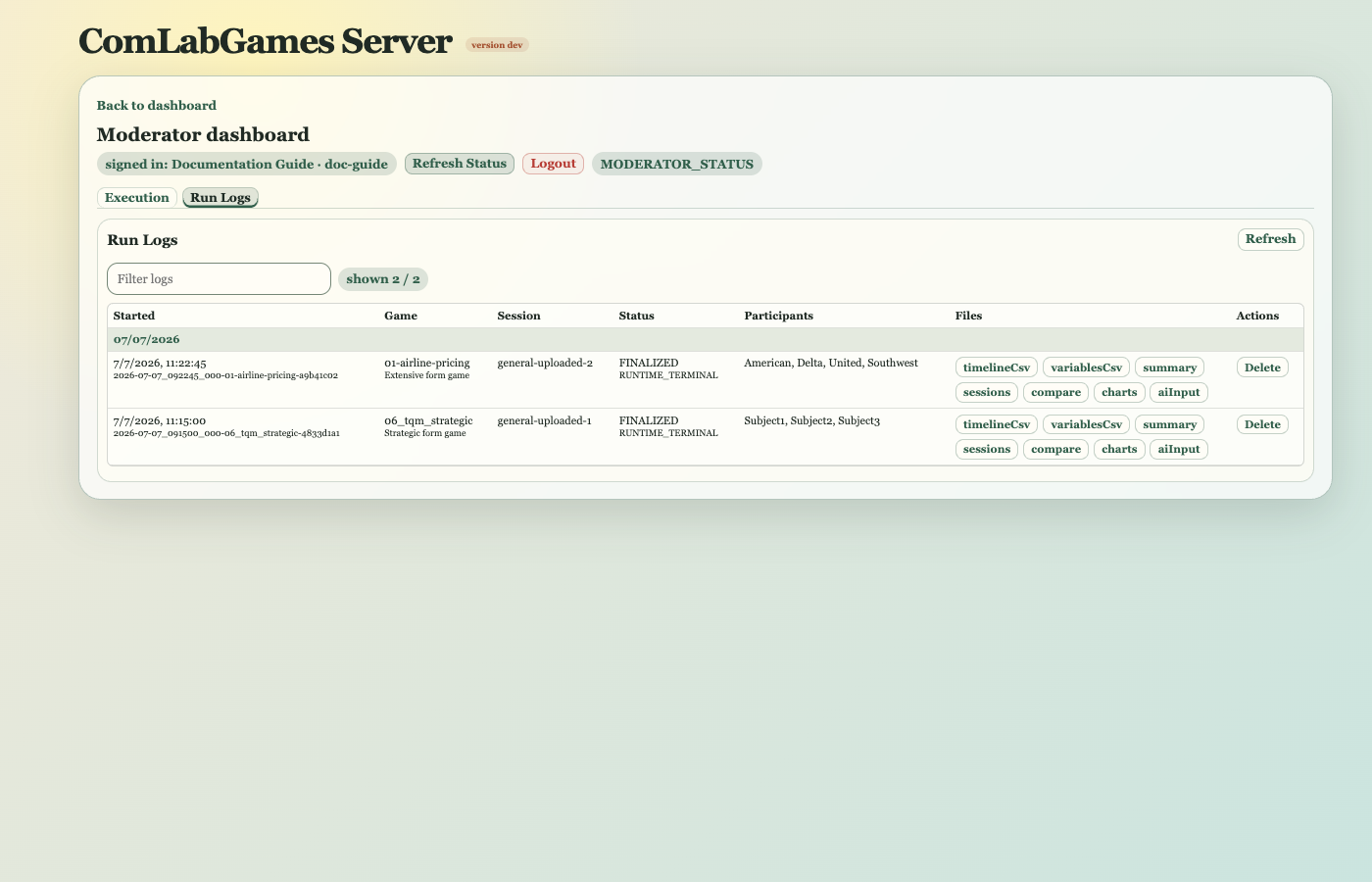
One run begins when a moderator starts a game definition. It may contain one or more sessions.
Each moderator's Run Logs are retained for at most 90 days, 100 Runs, and 2 GB. When any limit is exceeded, the server permanently removes that moderator's finalized Runs from oldest to newest until all limits are met. A Run that is currently open is protected; it becomes eligible after it finishes. Download any Run that must be kept longer.
Opening A Run
The Run Logs tab shows the retention limits above Open run log. Click it to open the searchable run chooser. Runs are grouped by date and show start time, game, and status. Selecting a row opens its analysis.
The chooser may show a live run badge while the run is still open. A server restart closes affected runs as abandoned with the completion reason SERVER_RESTART; those rows are historical, not live.
When loading or processing takes noticeable time, an Opening run log... working indicator covers the operation.
Analysis View
The analysis document presents only the blocks supported by the game and recorded data. Depending on game family, these may include:
- run and session metrics,
- participant activity,
- Variable and Choice history,
- Auction outcomes,
- Market price and transaction history,
- Strategic Form choices and payoffs,
- Extensive Form realized paths,
- Free Form Stage progression and outputs.
Session and Auction filters narrow compatible blocks. Table headers can be used for sorting where available. A preliminary live analysis may change until the run is finalized.
Variable and Choice history opens separately from the primary analysis. Large histories are shown in pages; use Previous and Next below the history to move through the recorded rows. The row range shows your current position in the complete history.
Viewer Actions
The viewer toolbar can:
- return to Replay events, the default view when a Run Log opens,
- switch to primary analysis and then Variable and Choice history,
- open AI input,
- copy the current document,
- download it,
- delete the run log,
- close the viewer.
Deletion requires confirmation and cannot be undone through the GUI.
2D Event Replay
Open a Run Log to see Replay events by default. The replay shows the current Stage and the latest recorded action for each participant. Participant lanes show the last recorded input; the System lane shows its latest result. Use Play/Pause, the previous and next buttons, or the upper position slider to change the selected event. The lower Browse events slider moves the event strip through the full timeline without changing the selection. Each event card shows its time, actor and action; the selected event is highlighted and its details appear below the strip. Choose a session when the run contains more than one. Speed controls how quickly the viewer advances from one recorded event to the next; it does not represent real elapsed time. Where payoff records identify a participant's game role, the replay groups them into one lane, such as Producer · Subject1.
A Continue button has no numeric value, so the replay shows Continue without the internal NaN placeholder. After a player submits a Choice, a confirmation that redisplays the same Stage keeps that Choice on the participant lane. A new Stage replaces it with the new Stage input. The selected event details still show the Stage input and result actually recorded in the log.
In Matrix games, a WAITING_FOR_CLIENT page reports the participant's role and page status; it does not replace an already submitted Choice on the replay lane. A recorded Nature coordinate appears on a separate Nature lane when the matrix outcome is selected. New Run Logs include its outcome label; older logs that recorded only the coordinate show an outcome number.
The replay is based on the server's timeline. Its rails and markers show event order and participant activity, not reconstructed player screens or unrecorded game state. Recorded Auction offers show their price beside the event name. Long event descriptions remain available in the wide detail panel below the cards; use Show full event to expand that panel when its text is clipped. The raw timeline JSON remains available through the viewer's Copy and Download buttons.
Replay cards contain time, actor and action. Input and Result appear only in the status panel below; the round number is context, not a result. Click a lane to select its nearest recorded event (or use arrow keys on a focused lane). Playback and navigation center the selected card where space permits; browsing the strip remains independent. Catalog refresh preserves the open viewer and playback. Session initialization and auction settlement snapshots appear under System.
A narrow colored stripe on each card matches its event dot on the participant lane. Blue marks game flow, orange a player action, violet a calculation or state, green an outcome, and gray presence. Unknown event types stay neutral. Hover over a card or dot to see the group name. The selected card keeps its stronger border.
Open Filter to choose event types and participants. Both start with all choices selected. Show all and Hide all change every choice in their respective group. Filtering limits cards, lane dots, the position sliders, and playback steps. Card numbers still refer to the full session timeline; participant summaries continue to reflect all recorded events up to the selected point. If nothing matches, adjust a choice or use Show all.
AI Input
AI input is a Markdown report assembled from run metadata and available deterministic analysis. It is intended for pasting into an external AI assistant. It asks the assistant to summarize outcomes, compare sessions where possible, and state uncertainty when evidence is incomplete.
Before building the report, the server replaces recorded participant identities, session IDs, and Run IDs with stable labels such as Participant 1, Session 1, and Run 1. The same identity keeps the same label throughout that export. The stored Run Log remains unchanged. The report also contains the typed cross-session distributions. Free-form answers and variable content remain part of the exported research data, so review them if participants could have entered personal details.
An analysis of a Run that is still open is preliminary. Each affected section is marked Incomplete, because later player actions or session completion can change its values. Once every session in the Run has finished, these sections become complete.
The browser attempts to copy the report and confirms whether clipboard access succeeded. If clipboard access is blocked, the report remains selected for manual copy.
Interpreting A Run
Run Logs records server events, not every visual detail a participant happened to see. Treat unfinished, abandoned, or live analysis as partial.
For Extensive Form Games, only decisions on the realized path are player decisions, although all intended payoff recipients may receive a terminal payoff. For Market Games, timer-driven updates and transactions can create events without a new participant click.
When a Run contains at least two sessions, Analysis also shows distributions across sessions. All games compare session duration. Additional measures depend on the game: Market uses trading activity and prices, Auction uses sale and profit results, Matrix and Tree use outcomes and payoffs, and Free Form Games use responses and Stage durations. Population size is the number of sessions in the Run; Sample size beside a metric is the number of sessions for which that metric was defined. A live Run labels these blocks Incomplete because later events can still change them.
Analysis presentation is still evolving. Preserve the original run when a result appears inconsistent so the event history and definition snapshot remain available for diagnosis.
For chooser fields, universal and game-specific analysis blocks, counts, filtering, and partial-data rules, see Run Log And Analysis Reference.
Stage events record each successful server send to a player, including repeated sends and partial page refreshes. They do not confirm that the browser rendered the page. This capture applies to new events; earlier logs can omit recipients of broadcast pages.